CAD AI beta
A drawing change, with an account of what followed.
Describe a supported Archicad change in plain English. See the questions it raises, the result, and the work left for a person.
In beta. This walkthrough follows one change on a Graphisoft sample house, then shows a different request where it stopped to ask. Choosing a model and running a change are not available on this site.
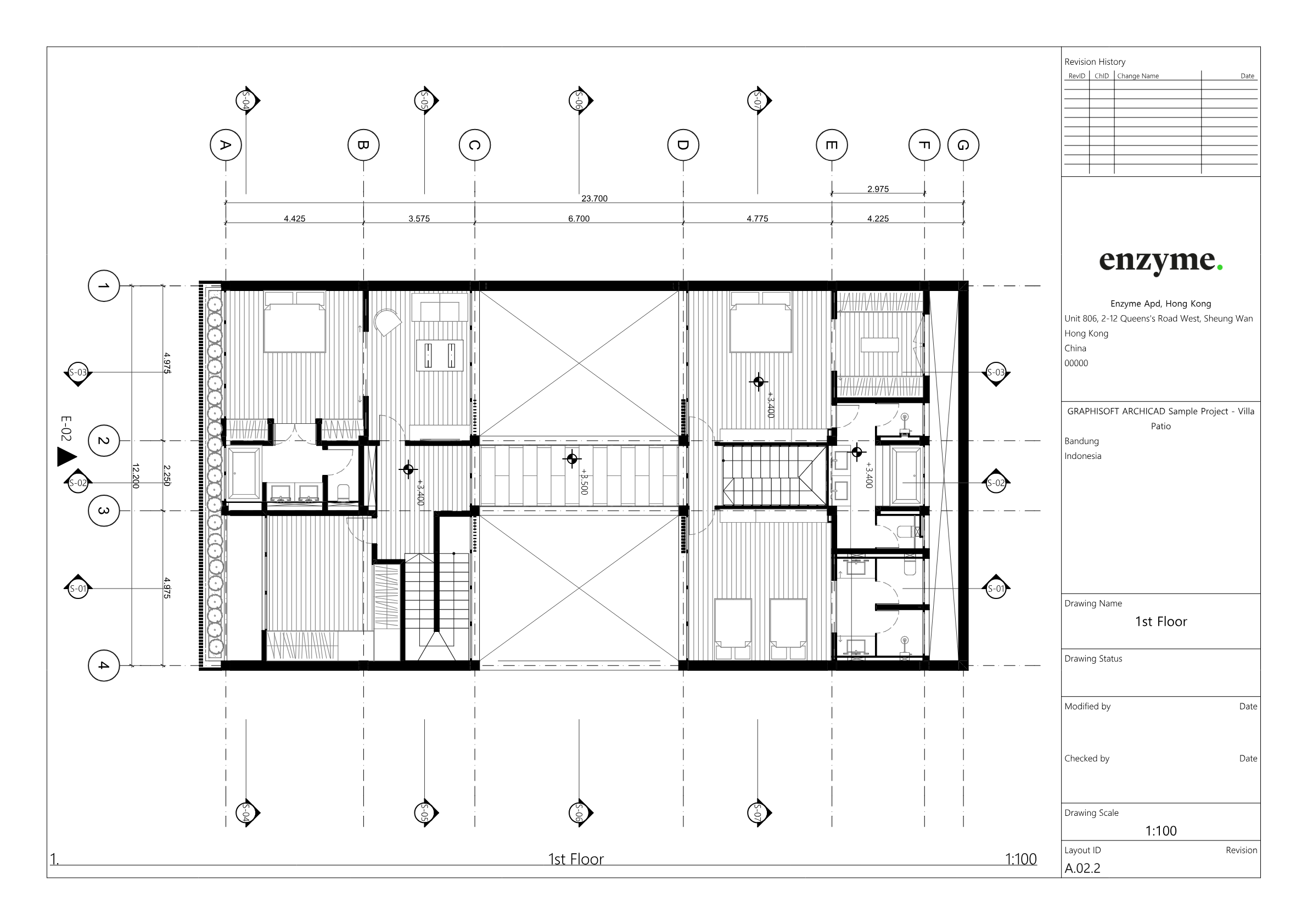
Scene 1 of 11
The request
A change described the way it arrives: in an email.
A sample request, written for this demonstration: Sam wants the big sliding opening in the guest bedroom moved along its wall. The email gives no direction and calls the room by a name the model does not use.
Source · scene4-before/before-A.02.2-sheet.png, scene1-request/request-original.txt · Graphisoft Villa Patio sample, Archicad 30, 27 October 2026
Use the arrow keys inside the walkthrough to move between scenes. Lines from the tool, measurements and images come only from the recorded runs; the last scene is from a different request.
How it works
What you give it
An Archicad model and a change request. Name the element, the movement, and anything that must stay the same. CAD AI works on the project open in Archicad.
Supported changes today:
- move or resize a door or window along its wall
- flip a door swing
- rename a room
- move a straight wall, with its wall ends repaired
What it checks
Before anything is sent, the planner checks each operation is supported, the element exists and can be edited, and the geometry works. It then predicts the knock-on effects: openings nearby, wall junctions, selected drafting and dimensions.
When the planned move would clash, the planner asks, with the measurements, and sends nothing until you answer. Knock-ons found during the live run are written to the report for a person to check. After the change it reads the model back from Archicad and compares before and after, recording what was predicted and what was not.
What you get back
A report with three parts: the requested change, the related changes, and the work left for a person. It records which operations were verified, what changed unexpectedly, and whether the model was saved. Selected sheets can be published to PDF. The tool searches each published page for its sheet ID and reports whether it found it. That shows the right sheet was published, not that the drawing is right.
What it does not do
It does not support every Archicad operation or make every design decision. It does not guarantee that every dimension, schedule and sheet is right after a change: anything outside its checks stays on the list for a person. The run in this walkthrough did not publish or check a door schedule.
Which change would you hand over first?
Tell us about your practice and the change you would try. We’ll contact you about the beta.