In beta · for small New Zealand architecture practices
Lodge Ready consent packs and AI that draws for you.
Two tools, from consent preparation to changes in Archicad. Lodge Ready reads a house consent set, checks the drawings against a Building Code checklist and drafts the paperwork, with findings traced to their pages. CAD AI makes supported Archicad changes from plain English and asks you when a decision is yours.
Explore recorded examples. Register interest to hear about the beta.
See what needs fixing before you lodge.
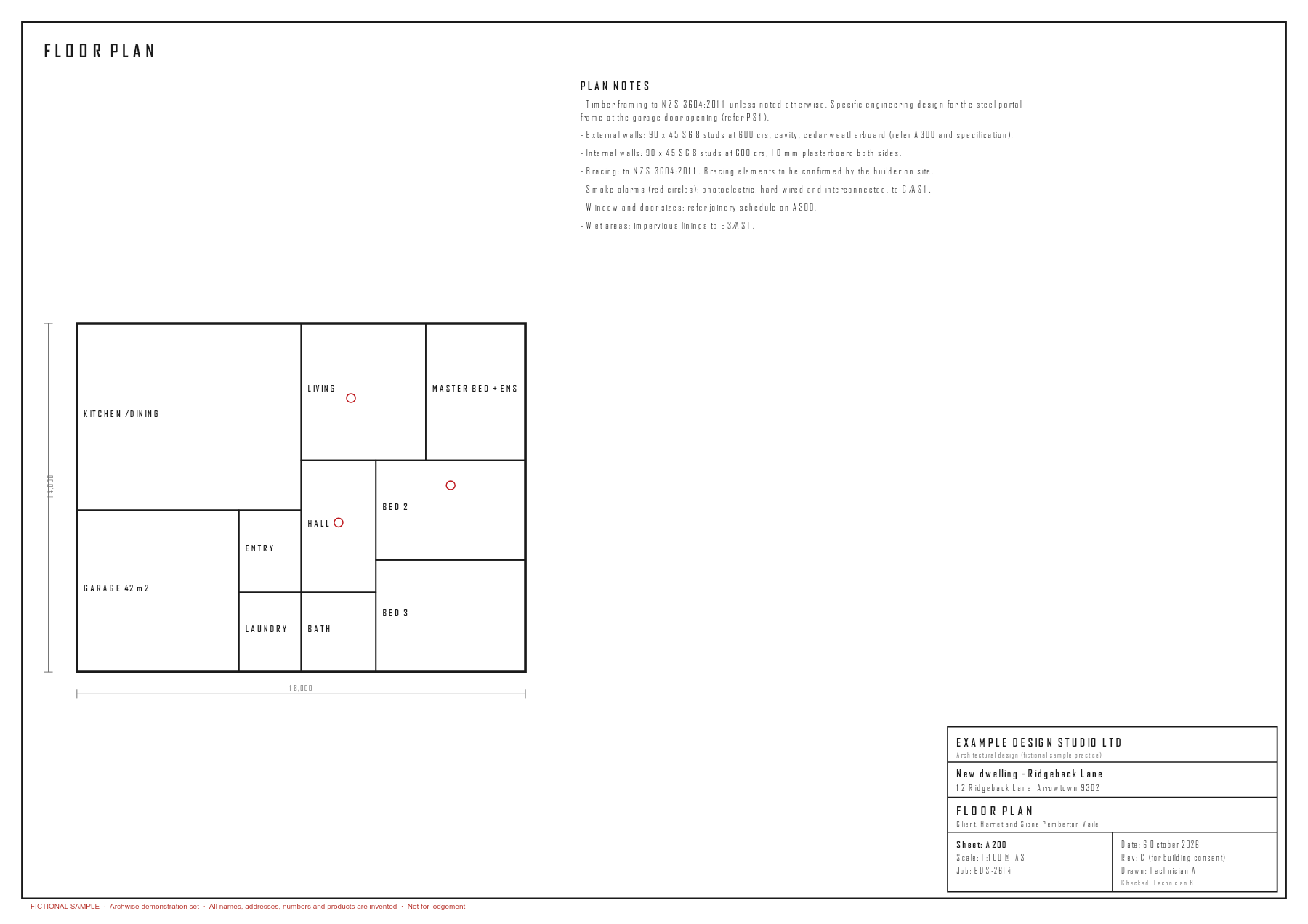
From the consent set you already have, prepare a draft Form 2, a Building Code drawing check, a specification and a specified-systems assessment. Follow each finding back to the words on its page.
See the Lodge Ready walkthroughIn beta. The site shows a recorded run on a fictional set.
- Step 1
Start with the set
Supply the PDFs: drawings, plus the Form 2, specification and producer statements already in the bundle. The council is read from the set or chosen by you. If the set names no council, the draft says which one it assumed.
- Step 2
Check what the set shows
Clause findings with page references, quotations and suggested fixes. Pages that disagree are reported, not quietly resolved.
- Step 3
Review the draft pack
A drawing-readiness result, then the items to fix or confirm: blockers first, Form 2 gaps and assumptions, and items marked [TBC] in the specification.
Describe the change. See what follows from it.
Ask in plain English for a supported Archicad change: move or resize a door or window, flip a door swing, rename a room, move a straight wall. CAD AI checks what the change affects, asks when a decision is yours, and reports what changed and what is left for a person.
See the CAD AI walkthroughIn beta. The walkthrough uses a Graphisoft sample project.
- Step 1
Describe the change
Name the element, the movement, and anything that must stay the same.
- Step 2
Resolve the decisions
If a planned move would clash, the planner asks, with the measurements, before sending any edit. Knock-ons found during the live run go into the report for you to check.
- Step 3
Inspect the result
Compare the model before and after, read the verified operations and related fixes, and see the work still to do.
A record you can check, not a verdict you have to trust.
The pack, its sources and the remaining work
Form 2, the drawing check, the specification and the specified-systems assessment come from one reading of the set. Every finding with evidence names its page; every gap is listed before you lodge.
Checks beyond the AI’s reading
Fixed rules for H1 and NZS 3604 can overrule the AI’s reading. Quotations are matched against their pages. The specification is assembled from maintained section data, with missing information left as [TBC].
Decisions stay visible
When a planned move would clash, CAD AI stops and asks. Your answer becomes part of the next run’s record, beside what you first asked for. Knock-ons found during the live run are listed in the report for you to check.
Built in New Zealand for New Zealand practice
Written around the NZ Building Code and New Zealand consent paperwork. Council form coverage is still limited, so check each application. Each draft’s cover counts the entries from the set, the assumptions to confirm and the blanks to supply.
Small practices preparing house consents and working in Archicad.
The drawing checklist is written for detached houses within NZS 3604, or houses with specific design for parts of the work. It is not a checklist for every building type.
Lodge Ready does not grant consent, lodge an application or replace your review. CAD AI supports a defined set of changes and leaves anything outside its checks visible for a person.
Call the checks from the assistant you already use.
Archwise exposes its checks as MCP tools, the open standard assistants use to call outside tools. The sample is a small local server that runs on your own computer, for Claude Desktop or another client that starts local MCP servers.
By default it returns Lodge Ready’s recorded result for the bundled fictional set. A fresh run on that set is optional and needs your own Anthropic API key.
It is a sample for the beta: it works on the fictional set only, and it lodges nothing with a council.
| list_samples | List the bundled fictional samples |
| lodge_ready_check | Check a sample and return the verdict |
| lodge_ready_findings | Read the sample’s findings, by clause |
› lodge_ready_check { "sample_id": "fictional-house" }
{ "verdict": "not_ready", "summary": "… 1 pass, 15 to check, 9 fail, 3 not applicable. Drawing check score 28/100; 2 blockers open. …", … }
Response abridged · recorded result of 27 October 2026
Built by Emertech in New Zealand
Archwise is being built around two practice tasks: preparing consent documents, and carrying a drawing change through to a checked result.
Both tools are in beta. The examples on this site show what they produce and where a person still needs to decide. They use fictional or Graphisoft sample projects, never a client’s work.
What would you try first?
Tell us about your practice and the job you would start with. We’ll contact you about the beta.